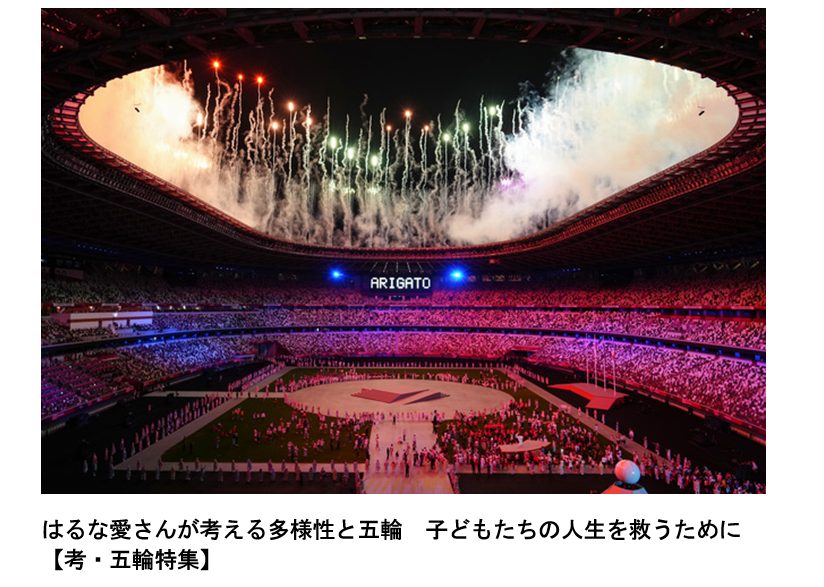
2021年8月8日(日曜日):
東京オリムピック大会が閉幕となりました。そのテーマは「多様性」だ。
日本に関する情報源

How Temperature and Lighting Impact Our Productivity?
1- Temperature and productivity
—-> “When temperatures were low 20 degrees Celsius, employees made 44% more mistakes than at optimal room temperature of 25 degrees Celsius.” WHY?
Reason: The studies point out that, if you are cold, you use substantial amount of your energy to keep you warm, then you put less energy toward concentration, inspiration and focus.
2- Lighting and productivity
—> “Compared to the afternoon, people who had DL (Daylight) were significantly more alert at the beginning of the evening, and subjects who were exposed to AL (Artificial light) were significantly sleepier at the end of the evening.”
—> our cortisol levels drop significantly under artificial or poor lighting conditions. That means we’ll be more stressed and less ability to stabilize out energy
What we have to do to get better productivity?
1) Wake up before sunrise: studies show that, few extra hours in natural daylight can help our cortisol levels to be more naturally adjusted
2) Warm up your room or office not cool it down, say setting the conditioner temperature at least not below 25 Degrees Celsius
3) Focus on lenses-indirect light
Try to optimize our home and office to natural lighting.
If you are unable to do so, try to get away from direct lighting and focus on lens-indirect lighting instead.
It means a bright, almost daylight-like lighting environment, that still doesn’t strain your eyes with direct light.

Windows 11 is supposed be able to be downloaded for freely upgrade within this year.
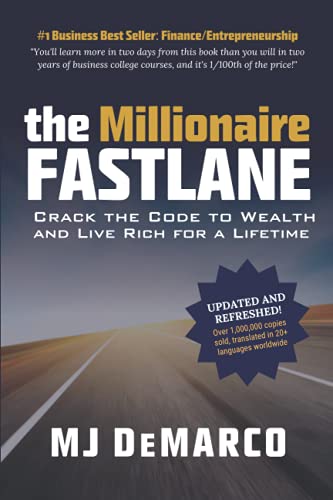
Idea to Fastlane: 1) Control your own business, 2) Leverage it (Time is sold for money, this is not Leverage); 3) Hard work doesn’t feel like work, in fact I enjoy it. Felt Rich and happy. 4) Automation and Process—> Money Tree grows money (the money rolls in) –> Fruit bearing money tree that requires only a few hours to flower it.
The book starts with questioning what is the True Wealth?
According to the Author, the True Wealth is not defined by material possession: Money or Stuffs. 3Fs are the fundamental of True Wealth: Family: Relationship, Fitness: Health and Freedom: Happiness.
Normal is the modern day of slavery. Society’s Corrupted Definition of Wealth–> Normal is corrupted.
Misuse Money and Money will Misuse You.
He goes to question: Money can’t buy happiness? Is it true? Used properly, In reality, Money buy freedom which is one fundamental of happiness.
How about taking a few time to review your business: whether it is a right Fastlane Roadmap / Path to Wealth or not?
According to the book titled: “Millionaire Fastlane”, the millionaire right business roadmap toward the WEALTH must follow the “LAW OF AFFECTION” that follow the 5 Commandments:
In Summary, it is called, “CENTS” Framework — don’t start a business to pay your bills, start one to set yourself free– both with time and money.
By M.J. DeMarco, the author, there are 3 different maps and paths used by people to achieve financial success. (1) The Sidewalk, (2) The Slow Lane, (3) The Fastlane (Choose Unlimited Controllable Gain (UCG); Have Your Own Business; Transform Your Lifestyle; Choose the Rapid Wealth Creation)
Other wisdoms of the book:
* Wealth is not the Road, it is a journey. That is to say, what is matter is not the final destination, but the whole process of reaching and enjoying it…
* Deem WEALTH as a construction work, as selling many products_ instead of thinking of yourself as a consumer, build the mindset that you are a producer, and always keep it in the foreground.
* Even if you have found a way, but if you never think it right way, it never turn into the Fastlane.
* You can come up with an idea of a good solution that has market potential and can make you rich, however, this will happen only if you move other pieces of the game:
** Project Execution;
** The Marketing;
** The service or consumer service;
** Your Product;
** The ideas.
* Execution is the King; and the ideas are the pawns.
* Burn the business plan; ignite the execution.
* Paulo Vieira, “Enrichment Factor”: the enrichment journey is made up of peaks and valleys, so be prepared and willing not to stop midway_ never give up make you millionaire.
* Lynda Gratton, “The 100 Year Life”: people must move from 3 stages: education, work, and retirement – to a multiple-stage life, that requires flexibility, and change in the way time is used.
* Jill Schlesinger, “The Dump Smart People Do With Their Money”: people should not invest their money in what they don’t know.
* Stop thinking like an employee and at the end of his life will bear the fruits of his efforts.
* Work with purpose and passion to stay motivated regardless of difficulties.
* Wealth does not depend on formulas, but requires beliefs, lifestyle, and the processes that you define.
* Create product Solutions that ensure process automation and income that is not dependent on your workforce.
* Stop planning and execute! Use execution learning to improve planning, creating an efficient and productive cycle.

STARTUP’S DEPARTURE POINTS : Looking out for Ideas
Continued from Previous Slide, about Startup Book…
Overall, BRAiNSTORMING is the Basic Method.
May 4th, 2021
We can convert Number to Word easily with the following website:
https://www.calculatorsoup.com/calculators/conversions/numberstowords.php
I tried to search for the function to print the amount in number to WORDS automatically in Quickbooks, but it seems that we can not print automatically. We can only add the Message box and write the amount in words by ourselves.
Therefore, the above website may be helpful to avoid error in writing.
Hope it is helpful 🙂
こちらの本はスタートアップにとって、読むべきだと思います。最初段階から、どうやってアイディアを導き出すのか?という詳細に基礎から書いてあります。フォーマットは書籍、Kindleとオーディオブックがあります。
以下のアマゾンからご購入可能です。
May 4th, 2021
Q1 .តើត្រូវធ្វើយ៉ាងដូចម្តេច ដើម្បីអោយExcelបម្លែងតម្លៃជាលេខ ទៅជាអក្សរ ដោយស្វ័យប្រវត្តិ?
Q1 . How to convert the amount in number(342) to word (Three Hundred Forty Two) automatically in Excel?
A- Follow the instructions below:
1) Use the keyboard shortcut, Alt + F11 to open the Visual Basic Editor (VBE).
2) Click the Insert tab, and click Module.
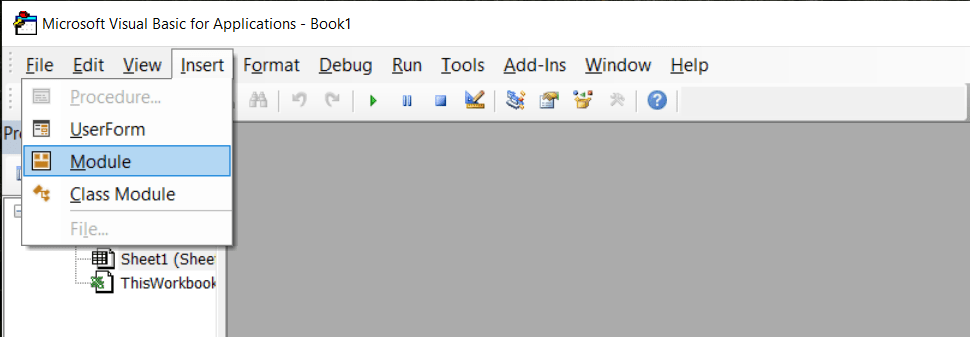
3) Copy the following lines of code.
________________________________________________________________
Option Explicit
‘Main Function
Function SpellNumber(ByVal MyNumber)
Dim Dollars, Cents, Temp
Dim DecimalPlace, Count
ReDim Place(9) As String
Place(2) = ” Thousand “
Place(3) = ” Million “
Place(4) = ” Billion “
Place(5) = ” Trillion “
‘ String representation of amount.
MyNumber = Trim(Str(MyNumber))
‘ Position of decimal place 0 if none.
DecimalPlace = InStr(MyNumber, “.”)
‘ Convert cents and set MyNumber to dollar amount.
If DecimalPlace > 0 Then
Cents = GetTens(Left(Mid(MyNumber, DecimalPlace + 1) & “00”, 2))
MyNumber = Trim(Left(MyNumber, DecimalPlace – 1))
End If
Count = 1
Do While MyNumber <> “”
Temp = GetHundreds(Right(MyNumber, 3))
If Temp <> “” Then Dollars = Temp & Place(Count) & Dollars
If Len(MyNumber) > 3 Then
MyNumber = Left(MyNumber, Len(MyNumber) – 3)
Else
MyNumber = “”
End If
Count = Count + 1
Loop
Select Case Dollars
Case “”
Dollars = “No Dollars”
Case “One”
Dollars = “One Dollar”
Case Else
Dollars = Dollars & ” Dollars”
End Select
Select Case Cents
Case “”
Cents = ” and No Cents”
Case “One”
Cents = ” and One Cent”
Case Else
Cents = ” and ” & Cents & ” Cents”
End Select
SpellNumber = Dollars & Cents
End Function
‘ Converts a number from 100-999 into text
Function GetHundreds(ByVal MyNumber) As String
Dim Result As String
If Val(MyNumber) = 0 Then Exit Function
MyNumber = Right(“000” & MyNumber, 3)
‘ Convert the hundreds place.
If Mid(MyNumber, 1, 1) <> “0” Then
Result = GetDigit(Mid(MyNumber, 1, 1)) & ” Hundred “
End If
‘ Convert the tens and ones place.
If Mid(MyNumber, 2, 1) <> “0” Then
Result = Result & GetTens(Mid(MyNumber, 2))
Else
Result = Result & GetDigit(Mid(MyNumber, 3))
End If
GetHundreds = Result
End Function
‘ Converts a number from 10 to 99 into text.
Function GetTens(TensText) As String
Dim Result As String
Result = “” ‘ Null out the temporary function value.
If Val(Left(TensText, 1)) = 1 Then ‘ If value between 10-19…
Select Case Val(TensText)
Case 10: Result = “Ten”
Case 11: Result = “Eleven”
Case 12: Result = “Twelve”
Case 13: Result = “Thirteen”
Case 14: Result = “Fourteen”
Case 15: Result = “Fifteen”
Case 16: Result = “Sixteen”
Case 17: Result = “Seventeen”
Case 18: Result = “Eighteen”
Case 19: Result = “Nineteen”
End Select
Else ‘ If value between 20-99…
Select Case Val(Left(TensText, 1))
Case 2: Result = “Twenty “
Case 3: Result = “Thirty “
Case 4: Result = “Forty “
Case 5: Result = “Fifty “
Case 6: Result = “Sixty “
Case 7: Result = “Seventy “
Case 8: Result = “Eighty “
Case 9: Result = “Ninety “
End Select
Result = Result & GetDigit(Right(TensText, 1)) ‘ Retrieve ones place.
End If
GetTens = Result
End Function
‘ Converts a number from 1 to 9 into text.
Function GetDigit(Digit) As String
Select Case Val(Digit)
Case 1: GetDigit = “One”
Case 2: GetDigit = “Two”
Case 3: GetDigit = “Three”
Case 4: GetDigit = “Four”
Case 5: GetDigit = “Five”
Case 6: GetDigit = “Six”
Case 7: GetDigit = “Seven”
Case 8: GetDigit = “Eight”
Case 9: GetDigit = “Nine”
End Select
End Function
_________________________________________________________________
4) Paste the lines of code into the Module1 (Code) box.
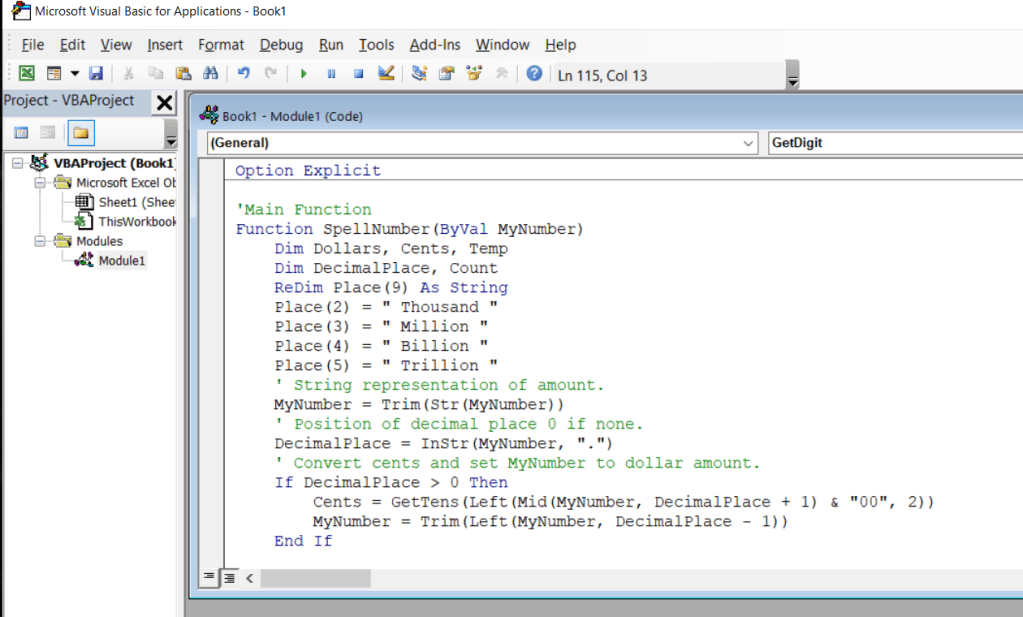
5) Use the Keyboard shortcut, Alt + [Q] to return to Excel file.
** After That, How to Use it?
à 1) Type the formula =SpellNumber(A1) into the cell where you want to display a written number, where A1 is the cell containing the number you want to convert. You can also manually type the value like =SpellNumber(22.50).

2) Press Enter to confirm the formula. That’s it! You will see the amount written in words automatically.

3) Save as Excel Macro-Enabled Workbook (.xlsm) to keep your file in its current format. To do that, follow the instructions below:
a) Click File > Save As.
b) Click the Save as type drop-down menu, and selct Excel Macro-Enabled Workbook.
c) Click Save.


 日本語プロ通訳・翻訳チーム