2021年7月02日(14:30~16:00)
国交省(MLIT)の支援で、バッタンバン市におけるスマートシティ実現向けマスタープラン策定支援プロジェクトに関するプリキックオフオンライン会議が実施されました。その際、逐次通訳担当させていただきました。
お陰様で、無事で終了できました。最後に、本案件を通じて、バッタンバン市がよりスマートなシティ実現する意気込みを、両側は表しながら、本案件の成果に大きな期待を寄せました。
また、新たに日本カンボジアの架け橋になることができて、嬉しい限りです。
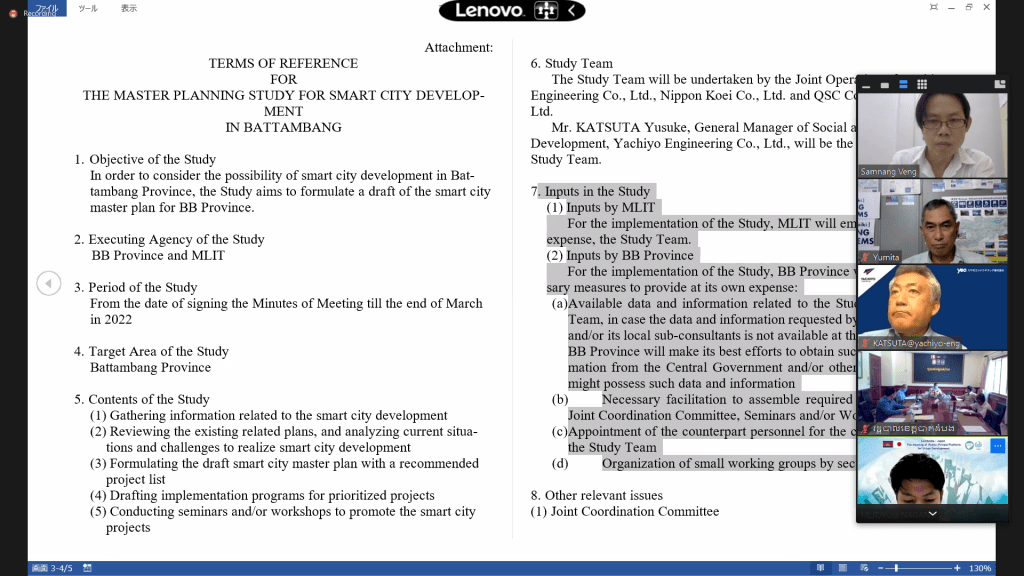
2021年7月02日(14:30~16:00)
国交省(MLIT)の支援で、バッタンバン市におけるスマートシティ実現向けマスタープラン策定支援プロジェクトに関するプリキックオフオンライン会議が実施されました。その際、逐次通訳担当させていただきました。
お陰様で、無事で終了できました。最後に、本案件を通じて、バッタンバン市がよりスマートなシティ実現する意気込みを、両側は表しながら、本案件の成果に大きな期待を寄せました。
また、新たに日本カンボジアの架け橋になることができて、嬉しい限りです。
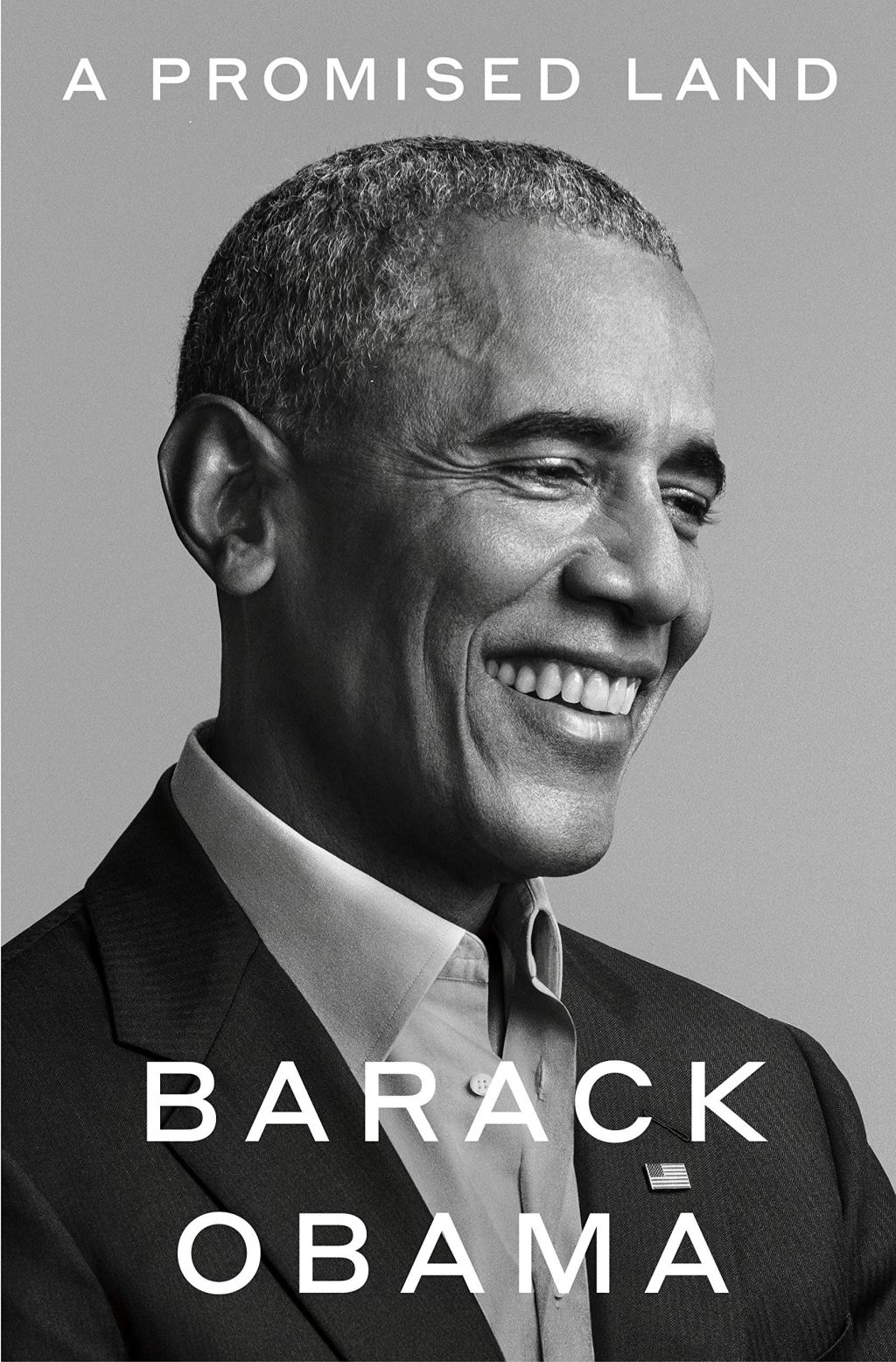
“Fly and never tire, Fly and never tire, There’s a great camp-meeting in the Promised Land.” FROM AN AFRICAN AMERICAN SPIRITUAL
“Don’t discount our powers; We have made a pass At the infinite.” _ROBERT FROST, “KITTY HAWK”
The book starts with the dedication to Michelle as love and Life Partner, his 2 daughters: Malia and Sasha as Dazzling Life makes everything brighter.
PART I
** Inspirations for Obama to run for the presidential election
– There are people looking for something different
– His colleague said:, ” 10 more years in the senate, it won’t make you a better president.”
– people’s expectation
Michelle asked: “Why do you need to be the president?”
Obama:
– It’s for new kind of politics.
– For New generations to take part in politics
– On the day I raise my right hand to take oath to be the president, the WORLD WILL START LOOKING AT AMERICA differently.
– Kids all around this country, black kids, Hispanic kids, the kids who don’t fit in, they’ll see something differently, too. The Horizon left in, the Possibility Expanded.
– For personal reason: If I win, I can say: the America that I believed in was possible.
. The Democracy I believed in was within reach.
. I wasn’t alone in believing that the world doesn’t need to be a cold and unforgiving place, the strong pranked the weak, enabling us to fall back into the clance, tribes, rushing out against the unknown, hurdling against the darkness.
End Part I

Windows 11 is supposed be able to be downloaded for freely upgrade within this year.
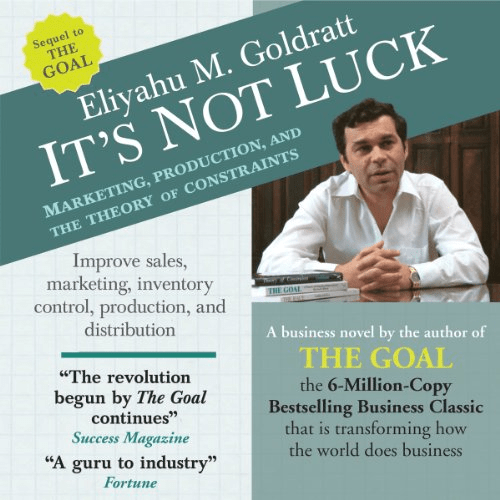
____THEORY OF CONSTRAINTS____
JUNE 24th, 2021
* LOGIC ANALYSIS/THINKING PROCESS*
* OBJECTIVE: TO FIND THE 1 OR 2 CORE PROBLEMS, NOT THE SYMPTOM, BECAUSE TO SOLVE THE PROBLEM, WE NEED TO CURE THE CORE PROBLEM, NOT THE SYMPTOM.
* PROCESS:
1) SUMMARIZE ALL THE UNDESIRABLE EFFECTS/PROBLEMS INTO 5 TO 10 ITEMS–> CURRENT REALITY TREE;
2) TRY TO IDENTIFY THE CAUSE AND EFFECT RELATIONSHIP BETWEEN AT LEAST TWO OF THE UNDESIRABLE EFFECTS/PROBLEMS.
3) TRY CONNECT ALL THE UNDESIRABLE EFFECTS/PROBLEMS BY USING THE EXPRESSION: IF…….. AND …….., THEN…….
* EXAMPLE IN THIS BOOK:
A SON ASKED HIS FATHER TO USE HIS CAR WHILE HE IS AWAY ON BUSINESS TRIP FOR 1 WEEK BY PROMISING TO PAY THE GASOLINE BY HIMSELF, HOWEVER, HIS FATHER IS RELUCTANT TO LEND HIM THE CAR. THE REASON IS BASED ON HIS LOGIC ANALYSIS AS FOLLOWS:
. When someone can use something regularly, it will become a habit, THEN, you get used to have your car at your own exposure.
>>>If….and….then….(expression)
..IF you get used to have use your car at your own exposure, AND I don’t want to share the car with you, THEN, you feel bad.
* CONCLUSION:
What you need is the intuition to the subject and the willpower to do the meticulous work. It takes about 5 hours or so to use Theory of Constraints to IDENTIFY the CORE PROBLEMS, NOT the symptoms, to solve the problems.
* IT IS ONE OF THE MARKETING BOOK THAT SHOULD BE READ AS A BUSINESSMAN/WOMAN.
** However, the process of logic thinking or analysis can be used for almost every situation with constraints or dilemma in order to find the two or three core problems, hence reach the WIN-WIN solution.
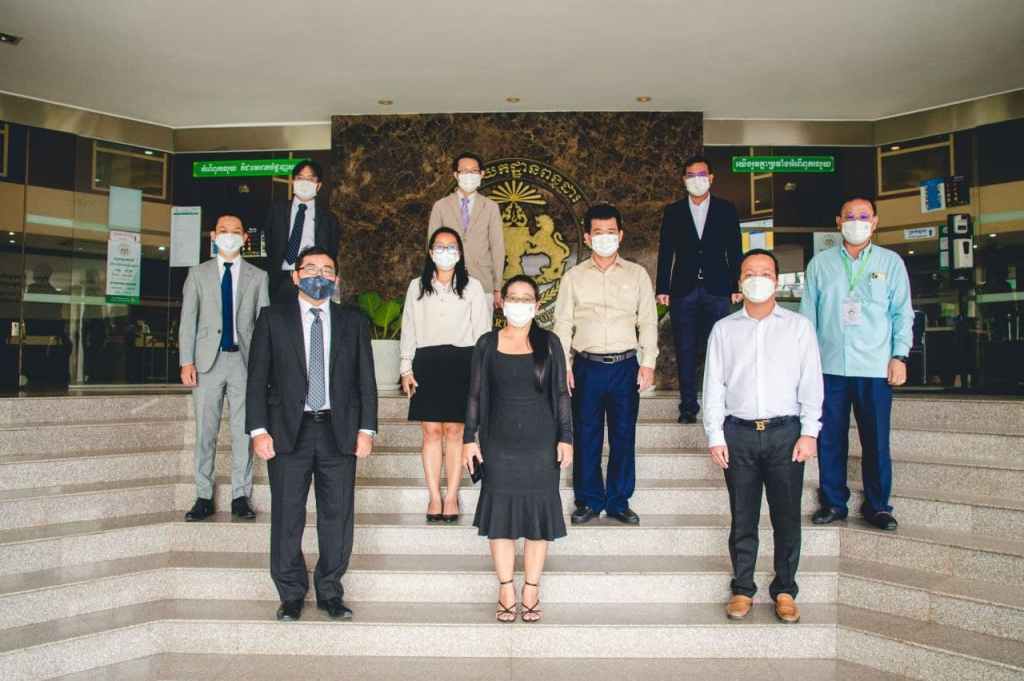
2021年6月10日
在カンボジア日本商工会(JBAC)とカンボジア租税総局(GDT)は、GDTの大会議で対話会議を開催しました。JBACの税制委員長が新しくアサインされまして、新委員長として、GDTに訪問、あいさつを重ねて、今年の租税課題について、打ち合わせできました。
途中で少し理解しづらいこともありましたが、結局、相互理解が達成できました。また、新たに無事で通訳を通じて、皆様に役に立つことができまして、本当にうれしく思っております。
また、機械ございましたら、お手伝いさせていただきたい。よろしくお願いいたします。
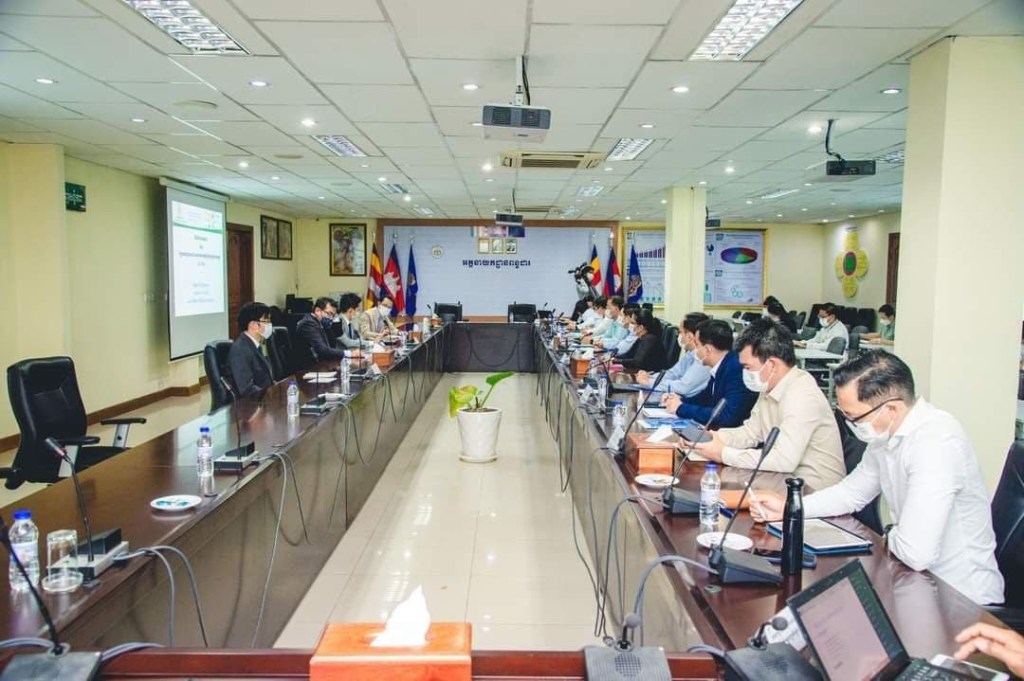
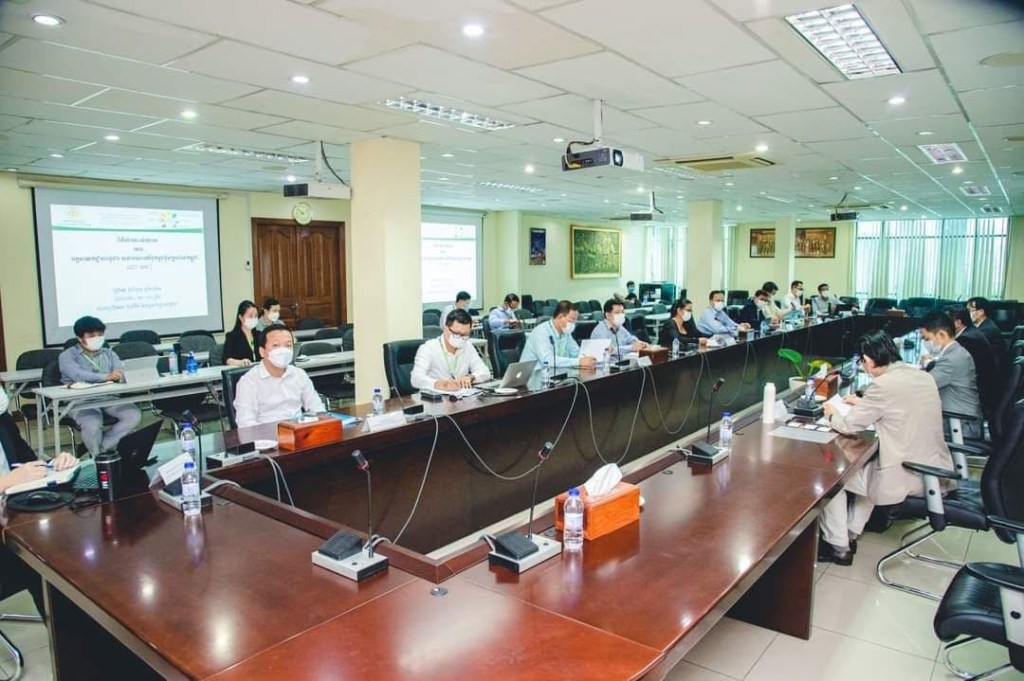

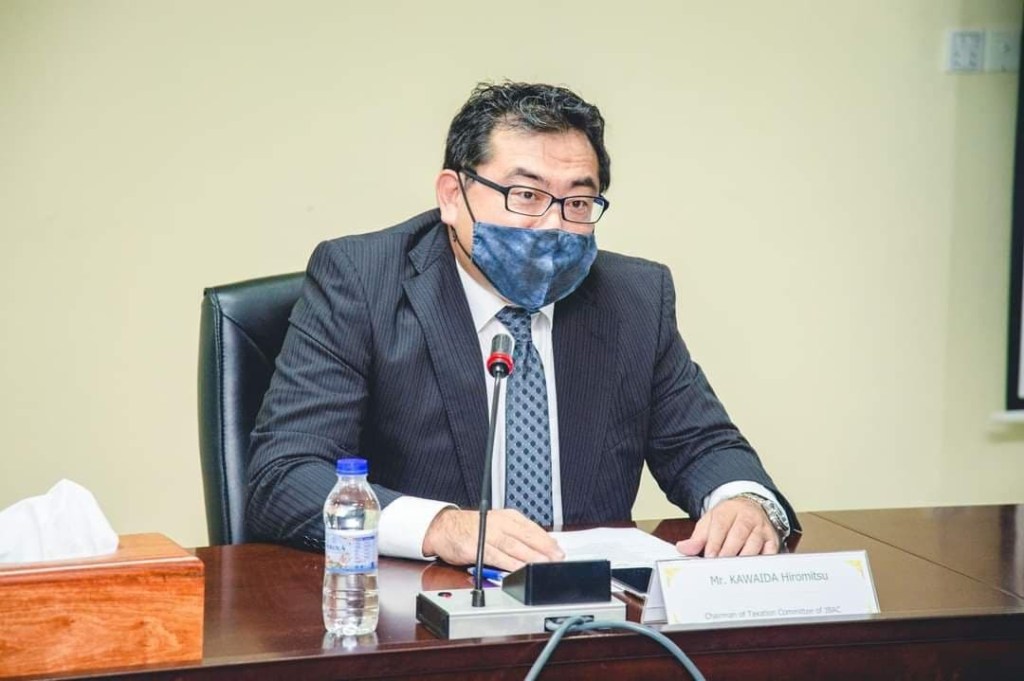
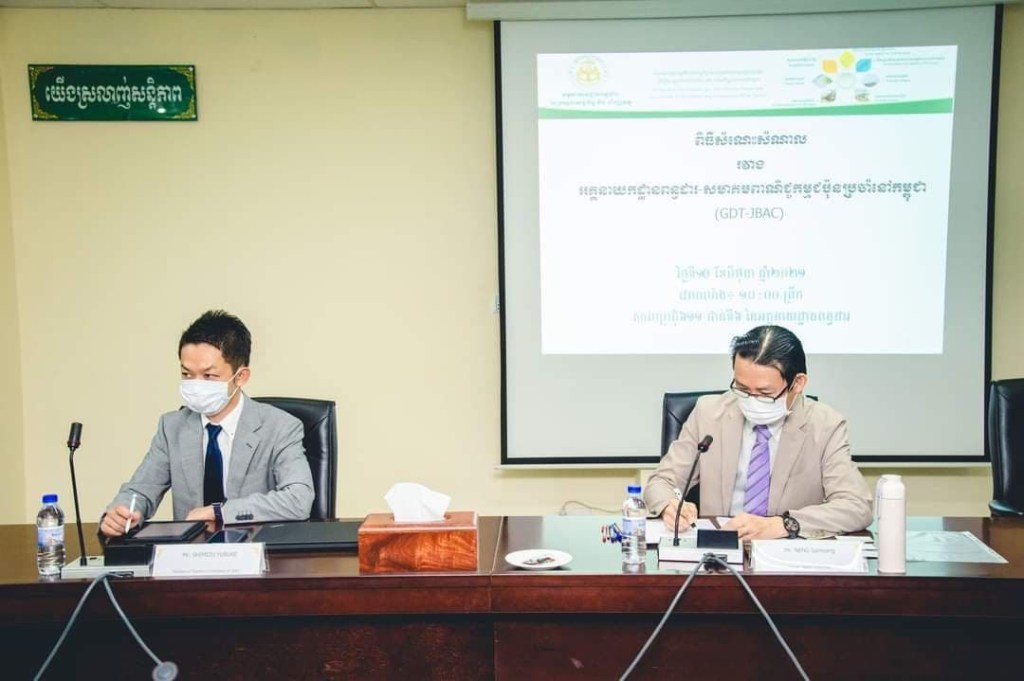
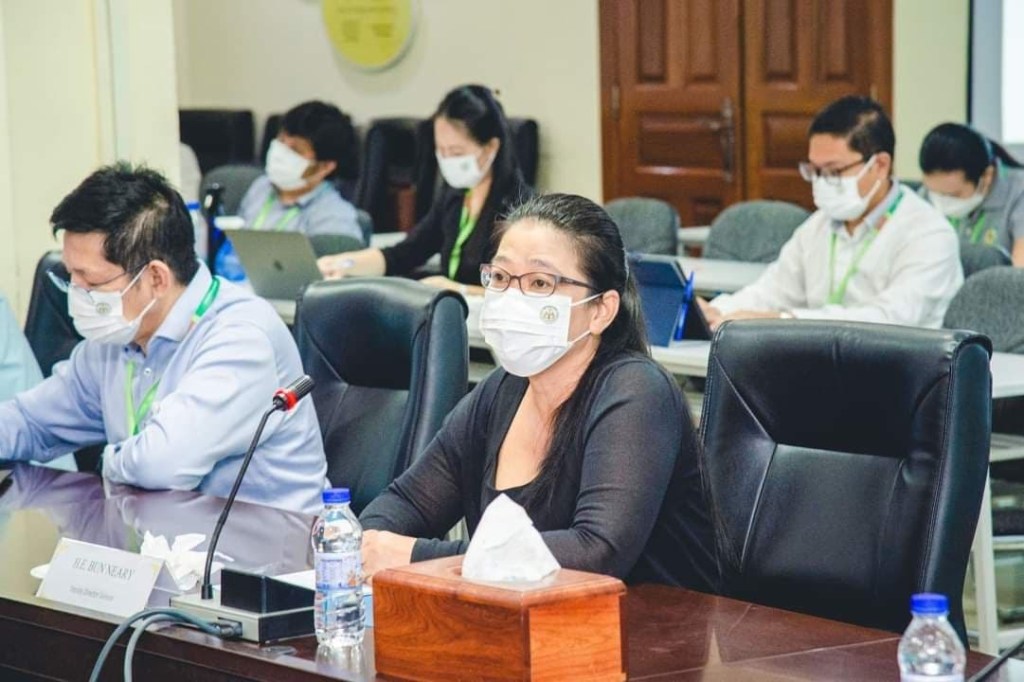
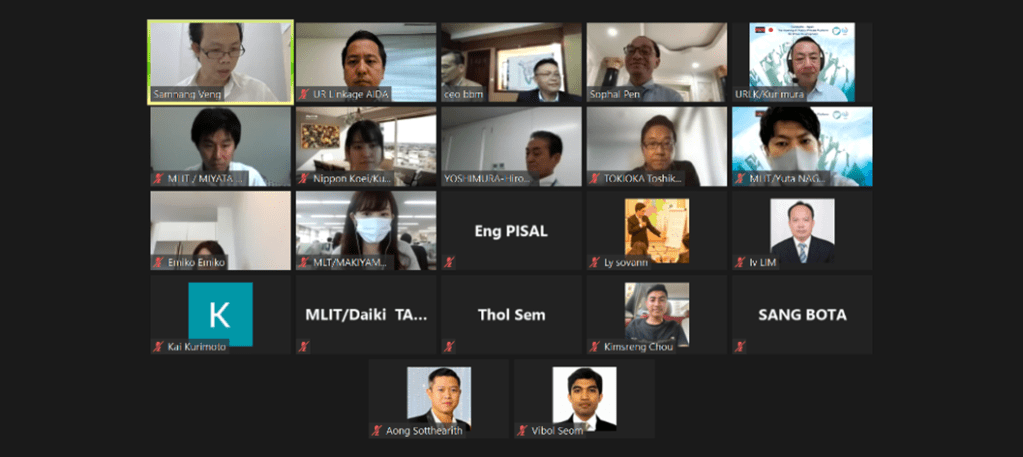
2021年5月20日:日本国道交通省とカンボジア国土計画建設省を含んで、BPC社との日本企業とのオンライン検討会議が開催されました。その際、私が通訳業務を担当させていただきました。スマートシティ開発に関する日・カンボジアプラットフォーム会議と意見交換会議の後、今回の会議では、スマートシティ開発に関する進捗状況報告の後、相互理解に向け調整事項などについて、意見交換が行われました。
約2時間ぐらいで、ビジネス商談のような形式でオンライン会議の通訳をまた、無事に終了できました。
おかげさまで、皆様に役に立つことができて、感謝を申し上げます。
また、機械ございましたら、引き続きよろしくお願いいたします。
ヴェン サムナン
Idea to Fastlane: 1) Control your own business, 2) Leverage it (Time is sold for money, this is not Leverage); 3) Hard work doesn’t feel like work, in fact I enjoy it. Felt Rich and happy. 4) Automation and Process—> Money Tree grows money (the money rolls in) –> Fruit bearing money tree that requires only a few hours to flower it.
The book starts with questioning what is the True Wealth?
According to the Author, the True Wealth is not defined by material possession: Money or Stuffs. 3Fs are the fundamental of True Wealth: Family: Relationship, Fitness: Health and Freedom: Happiness.
Normal is the modern day of slavery. Society’s Corrupted Definition of Wealth–> Normal is corrupted.
Misuse Money and Money will Misuse You.
He goes to question: Money can’t buy happiness? Is it true? Used properly, In reality, Money buy freedom which is one fundamental of happiness.
How about taking a few time to review your business: whether it is a right Fastlane Roadmap / Path to Wealth or not?
According to the book titled: “Millionaire Fastlane”, the millionaire right business roadmap toward the WEALTH must follow the “LAW OF AFFECTION” that follow the 5 Commandments:
In Summary, it is called, “CENTS” Framework — don’t start a business to pay your bills, start one to set yourself free– both with time and money.
By M.J. DeMarco, the author, there are 3 different maps and paths used by people to achieve financial success. (1) The Sidewalk, (2) The Slow Lane, (3) The Fastlane (Choose Unlimited Controllable Gain (UCG); Have Your Own Business; Transform Your Lifestyle; Choose the Rapid Wealth Creation)
Other wisdoms of the book:
* Wealth is not the Road, it is a journey. That is to say, what is matter is not the final destination, but the whole process of reaching and enjoying it…
* Deem WEALTH as a construction work, as selling many products_ instead of thinking of yourself as a consumer, build the mindset that you are a producer, and always keep it in the foreground.
* Even if you have found a way, but if you never think it right way, it never turn into the Fastlane.
* You can come up with an idea of a good solution that has market potential and can make you rich, however, this will happen only if you move other pieces of the game:
** Project Execution;
** The Marketing;
** The service or consumer service;
** Your Product;
** The ideas.
* Execution is the King; and the ideas are the pawns.
* Burn the business plan; ignite the execution.
* Paulo Vieira, “Enrichment Factor”: the enrichment journey is made up of peaks and valleys, so be prepared and willing not to stop midway_ never give up make you millionaire.
* Lynda Gratton, “The 100 Year Life”: people must move from 3 stages: education, work, and retirement – to a multiple-stage life, that requires flexibility, and change in the way time is used.
* Jill Schlesinger, “The Dump Smart People Do With Their Money”: people should not invest their money in what they don’t know.
* Stop thinking like an employee and at the end of his life will bear the fruits of his efforts.
* Work with purpose and passion to stay motivated regardless of difficulties.
* Wealth does not depend on formulas, but requires beliefs, lifestyle, and the processes that you define.
* Create product Solutions that ensure process automation and income that is not dependent on your workforce.
* Stop planning and execute! Use execution learning to improve planning, creating an efficient and productive cycle.

STARTUP’S DEPARTURE POINTS : Looking out for Ideas
Continued from Previous Slide, about Startup Book…
Overall, BRAiNSTORMING is the Basic Method.


 日本語プロ通訳・翻訳チーム