カテゴリー: Troubleshooting

  • How to bypass Microsoft account registration when newly set up windows 11

    PC trouble Shooting

    • When you reset your windows 11 PC, in order to bypass the requirement to create Microsoft account, follows these instructions:

    1) Disable Internet connection by disable the WiFi by with the following command:

    a) press [Shift] + [F10] at the same time to enter the Command prompt;

    b) type these command:
    netsh interface set interface “Wi-Fi” disable

    And then press the key [Enter]

    c) type the command to restart the pc
    Shutdown /r

    And then press the key [Enter]

    —> the pc will restart

    2) when the PC restart, press the following key

    a) press [Shift] + [F10] at the same time to enter the Command prompt;

    b) type this command
    Oobe\BypassNRO

    And the press the key [Enter]

    C) pc will restart again

    This time you will be able to set up the new pc without internet. So you can leave the password blank and no need to create the Microsoft account at all.

    Thanks for your attention 🙂

  • Reset the PC by bypassing the requirement to create Microsoft account

    PC trouble Shooting

    • When you reset your windows 11 PC, in order to bypass the requirement to create Microsoft account, follows these instructions:

    1) Disable Internet connection by disable the WiFi by with the following command:

    a) press [Shift] + [F10] at the same time to enter the Command prompt;

    b) type these command:
    netsh interface set interface “Wi-Fi” disable

    And then press the key [Enter]

    c) type the command to restart the pc
    Shutdown /r

    And then press the key [Enter]

    —> the pc will restart

    2) when the PC restart, press the following key

    a) press [Shift] + [F10] at the same time to enter the Command prompt;

    b) type this command
    Oobe\BypassNRO

    And the press the key [Enter]

    C) pc will restarts again

    This time you will be able to set up the new pc without internet. So you can leave the password blank and no need to create the Microsoft account at all.

    Thanks for your attention 🙂

  • Outlook Send/Receive Error: “Your email server rejected your login.” for IMAP Outlook 2016

    If you meet this problem, you can set as follows:

    For Incoming mail server: outlook.office365.com, port: 993 (SSL)

    For Outgoing mail server: smtp.office365.com, Port: 25 (NON)

    It would work fine.

    Thank you 🙂

  • Outlook Error can’t open the file

    In case you meet the error of Microsoft Outlook sending the message, “Outlook can’t open the file…”

    The solution is easy as follows:

    You just click and dowload this file and execute it.

    Download Microsoft Support and Recovery Assistant for Office 365

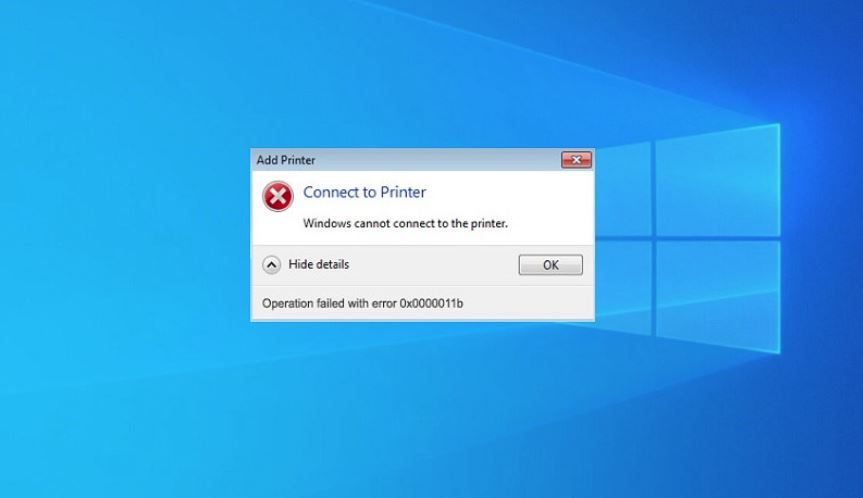
  • How to solve printer operation failed 0x0000011b Error Fix

    How to solve printer operation failed 0x0000011b Error Fix

    SEP. 29th, 2021

    Simple to solve this problem. You just go to the Master Pc that is connected with the printer directly by USB and uninstall the following windows update.

    Uninstall Windows update: KB5005565

    PLEASE CHECK THE ATTACHED PICTURE BELOW:

  • Troubleshooting for Outlook XML Error

    Troubleshooting for Outlook XML Error
    Have you ever encounter this Error when you turn on the Outlook E-mail?
    Can not open Outlook, XML is Invalid.
    (outlookは開けません無効なXMLです)
    Troubleshooting:
    1) Complete shutdown the Program Outlook,
    2) Just go to Right Click on the Start Button –> Click Run –> Copy the Following Command and Paste, then Press Enter Key. It would be solved.
    Outlook.exe /resetnavpane

  • Have you ever forgotten to attach the E-mail any document?

    Have you ever forgotten the attachment when you send the E-mail?


    Troubleshooting:
    1- Change the Order of Creating E-mail:
    1) Attach the File => 2) Write down the Subject => 3) Write the contents => 4) Insert the E-mal address to send to.

    2- Change the Setting
    * Even after sending the E-mail, Enable to cancel it.

    In case of Gmail, please follow the following instructions:
    1) Go to Setting which is on the right corner on the top, near the Sign out Mark;
    2) Click [All Setting];
    3) Go to [General] TAB;
    4) Look for [Undo Send] and you can set the time of cancellation up to 30 Seconds.
    5) Go down to the bottom of the Page, you can [Save Change]

    3- [RightInBox] for Gmail
    * In the troubleshooting #2, you can set the undo send mail by only 30 Seconds, if you want some more time. You can use the function [RightInBox] provided by Gmail. However, you can use free of charge for only up to 10 Mails/Month.

    Here is how to set it.
    1) Search for RightInBox in the Chrome Browser and Add the extension to Chrom and Start Installing it;
    https://chrome.google.com/webstore/detail/rightinbox-emailreminder/mflnemhkomgploogccdmcloekbloobgb
    2) After Installing, when you open the Gmail in Chrome, it will ask you choose the PLAN: [Limited], [Yearly] or [Monthly], then you can choose [Limited] Plan for Free;
    3) At the Creating Mail Window, you can add the buttons such as [Send Later], [Remind me] and so on.
    . After creating the E-mail, In stead of Clicking the button [Send], you can choose [Send Later] and then, you can set when to send that E-mail.
    . If not in a hurry, you can set to send in 1 hour, there would be enough time to re-edit the E-mail.
    4) The mail which is set to send Later, it would be saved in the [Draft] Mail folder. If you change your mind to change it immediately, you just open the E-mail and click [Send Now].
    In the opposite, if you want to cancel the sending schedule, you just click [Send Later] again, and click [Cancel Scheduled Email].


    That’s it for now! 🙂
  • Outlook Error Code: 80090016 (TROUBLESHOOTING)

    Outlook Error Code: 80090016 (TROUBLESHOOTING)

    Have you ever encountered this kind of Error (Error Code: 80090016) with Microsoft Outlook, when you changed the Login Password of your account?

    It is Outlook 365 Trusted Platform Module Security Error.

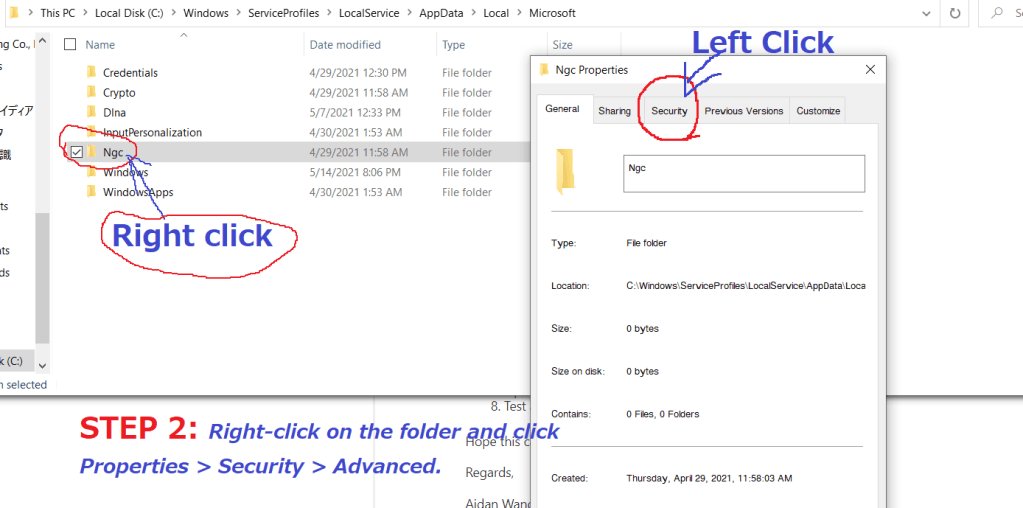
    Solution: Deleting the Contents of Ngc Folder. How? Just follow the procedures below:

    1. Find the path below:
      C:\Windows\ServiceProfiles\LocalService\AppData\Local\Microsoft\
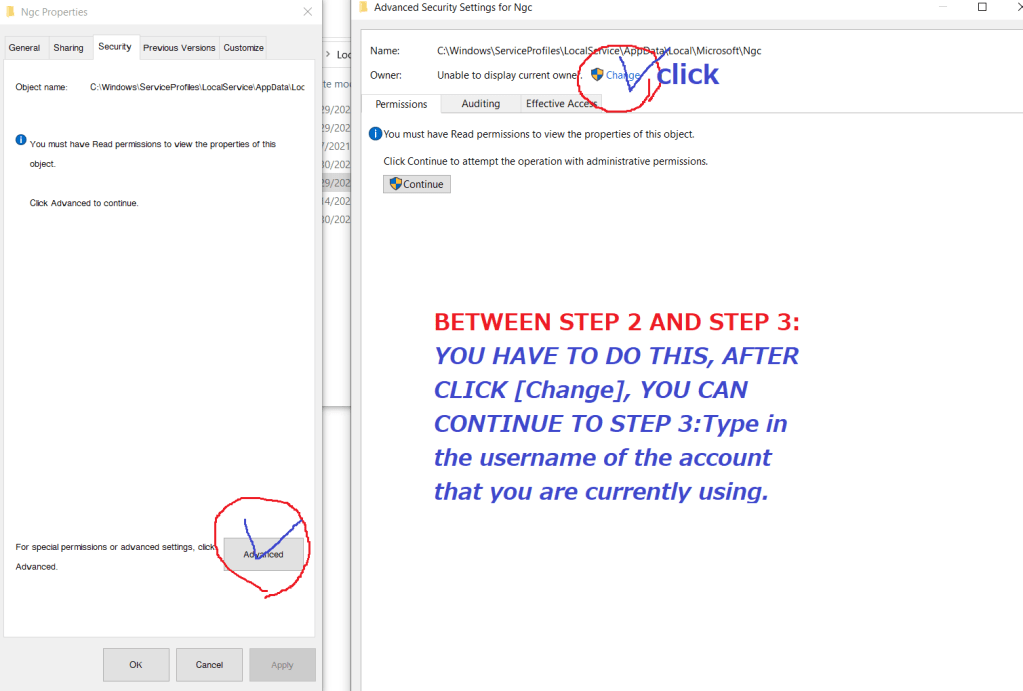
    2. Take over ownership of Ngc folder. Right-click on the folder [Ngc] and click Properties > Security > Advanced.
    3. Type in the username of the account that you are currently using
    4. Check names and click OK.
    5. Make sure that the “Replace owner on subcontainers and objects’ box is checked.
    6. Click Apply and hit OK.
    7. Open up the folder [Ngc] folder and delete all the contents of the folder.
    8. Turn Outlook, it would work fine.

    PLEASE CHECK THE ATTACHED SCREENSHOTS FOR BETTER UNDESTANDING.