May 4th, 2021
Q1 .តើត្រូវធ្វើយ៉ាងដូចម្តេច ដើម្បីអោយExcelបម្លែងតម្លៃជាលេខ ទៅជាអក្សរ ដោយស្វ័យប្រវត្តិ?
Q1 . How to convert the amount in number(342) to word (Three Hundred Forty Two) automatically in Excel?
A- Follow the instructions below:
1) Use the keyboard shortcut, Alt + F11 to open the Visual Basic Editor (VBE).
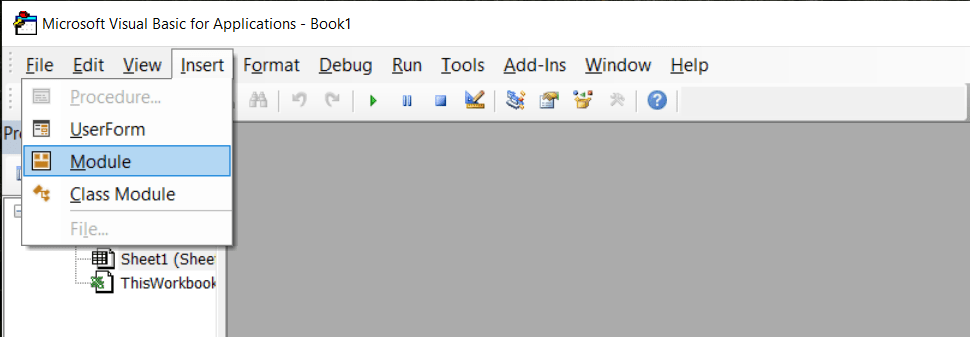
2) Click the Insert tab, and click Module.
3) Copy the following lines of code.
________________________________________________________________
Option Explicit
‘Main Function
Function SpellNumber(ByVal MyNumber)
Dim Dollars, Cents, Temp
Dim DecimalPlace, Count
ReDim Place(9) As String
Place(2) = ” Thousand “
Place(3) = ” Million “
Place(4) = ” Billion “
Place(5) = ” Trillion “
‘ String representation of amount.
MyNumber = Trim(Str(MyNumber))
‘ Position of decimal place 0 if none.
DecimalPlace = InStr(MyNumber, “.”)
‘ Convert cents and set MyNumber to dollar amount.
If DecimalPlace > 0 Then
Cents = GetTens(Left(Mid(MyNumber, DecimalPlace + 1) & “00”, 2))
MyNumber = Trim(Left(MyNumber, DecimalPlace – 1))
End If
Count = 1
Do While MyNumber <> “”
Temp = GetHundreds(Right(MyNumber, 3))
If Temp <> “” Then Dollars = Temp & Place(Count) & Dollars
If Len(MyNumber) > 3 Then
MyNumber = Left(MyNumber, Len(MyNumber) – 3)
Else
MyNumber = “”
End If
Count = Count + 1
Loop
Select Case Dollars
Case “”
Dollars = “No Dollars”
Case “One”
Dollars = “One Dollar”
Case Else
Dollars = Dollars & ” Dollars”
End Select
Select Case Cents
Case “”
Cents = ” and No Cents”
Case “One”
Cents = ” and One Cent”
Case Else
Cents = ” and ” & Cents & ” Cents”
End Select
SpellNumber = Dollars & Cents
End Function
‘ Converts a number from 100-999 into text
Function GetHundreds(ByVal MyNumber) As String
Dim Result As String
If Val(MyNumber) = 0 Then Exit Function
MyNumber = Right(“000” & MyNumber, 3)
‘ Convert the hundreds place.
If Mid(MyNumber, 1, 1) <> “0” Then
Result = GetDigit(Mid(MyNumber, 1, 1)) & ” Hundred “
End If
‘ Convert the tens and ones place.
If Mid(MyNumber, 2, 1) <> “0” Then
Result = Result & GetTens(Mid(MyNumber, 2))
Else
Result = Result & GetDigit(Mid(MyNumber, 3))
End If
GetHundreds = Result
End Function
‘ Converts a number from 10 to 99 into text.
Function GetTens(TensText) As String
Dim Result As String
Result = “” ‘ Null out the temporary function value.
If Val(Left(TensText, 1)) = 1 Then ‘ If value between 10-19…
Select Case Val(TensText)
Case 10: Result = “Ten”
Case 11: Result = “Eleven”
Case 12: Result = “Twelve”
Case 13: Result = “Thirteen”
Case 14: Result = “Fourteen”
Case 15: Result = “Fifteen”
Case 16: Result = “Sixteen”
Case 17: Result = “Seventeen”
Case 18: Result = “Eighteen”
Case 19: Result = “Nineteen”
End Select
Else ‘ If value between 20-99…
Select Case Val(Left(TensText, 1))
Case 2: Result = “Twenty “
Case 3: Result = “Thirty “
Case 4: Result = “Forty “
Case 5: Result = “Fifty “
Case 6: Result = “Sixty “
Case 7: Result = “Seventy “
Case 8: Result = “Eighty “
Case 9: Result = “Ninety “
End Select
Result = Result & GetDigit(Right(TensText, 1)) ‘ Retrieve ones place.
End If
GetTens = Result
End Function
‘ Converts a number from 1 to 9 into text.
Function GetDigit(Digit) As String
Select Case Val(Digit)
Case 1: GetDigit = “One”
Case 2: GetDigit = “Two”
Case 3: GetDigit = “Three”
Case 4: GetDigit = “Four”
Case 5: GetDigit = “Five”
Case 6: GetDigit = “Six”
Case 7: GetDigit = “Seven”
Case 8: GetDigit = “Eight”
Case 9: GetDigit = “Nine”
End Select
End Function
_________________________________________________________________
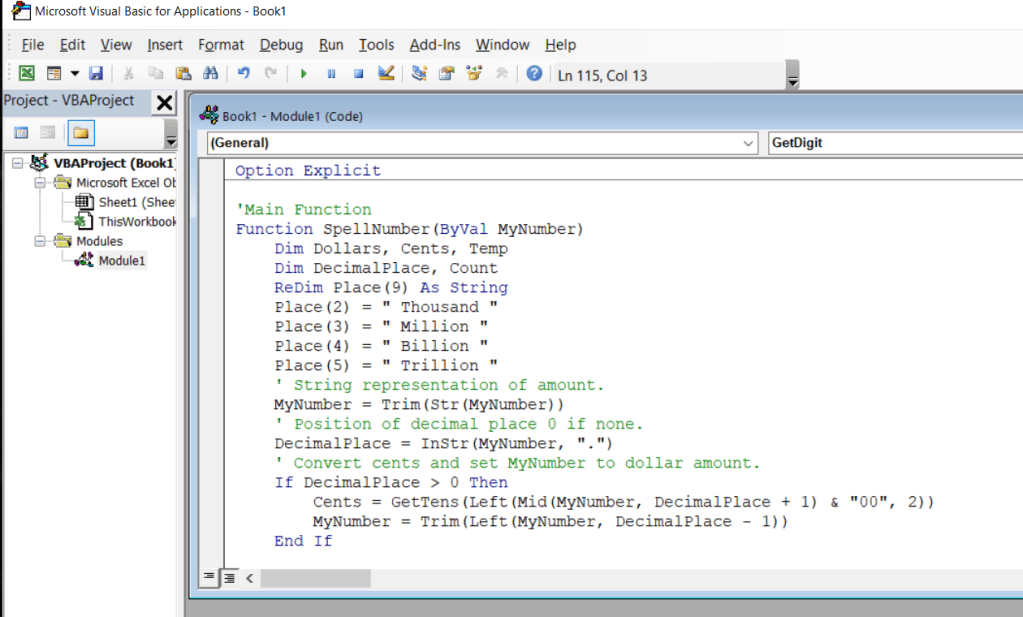
4) Paste the lines of code into the Module1 (Code) box.
5) Use the Keyboard shortcut, Alt + [Q] to return to Excel file.
** After That, How to Use it?
à 1) Type the formula =SpellNumber(A1) into the cell where you want to display a written number, where A1 is the cell containing the number you want to convert. You can also manually type the value like =SpellNumber(22.50).
2) Press Enter to confirm the formula. That’s it! You will see the amount written in words automatically.
3) Save as Excel Macro-Enabled Workbook (.xlsm) to keep your file in its current format. To do that, follow the instructions below:
a) Click File > Save As.
b) Click the Save as type drop-down menu, and selct Excel Macro-Enabled Workbook.
c) Click Save.


 日本語プロ通訳・翻訳チーム